
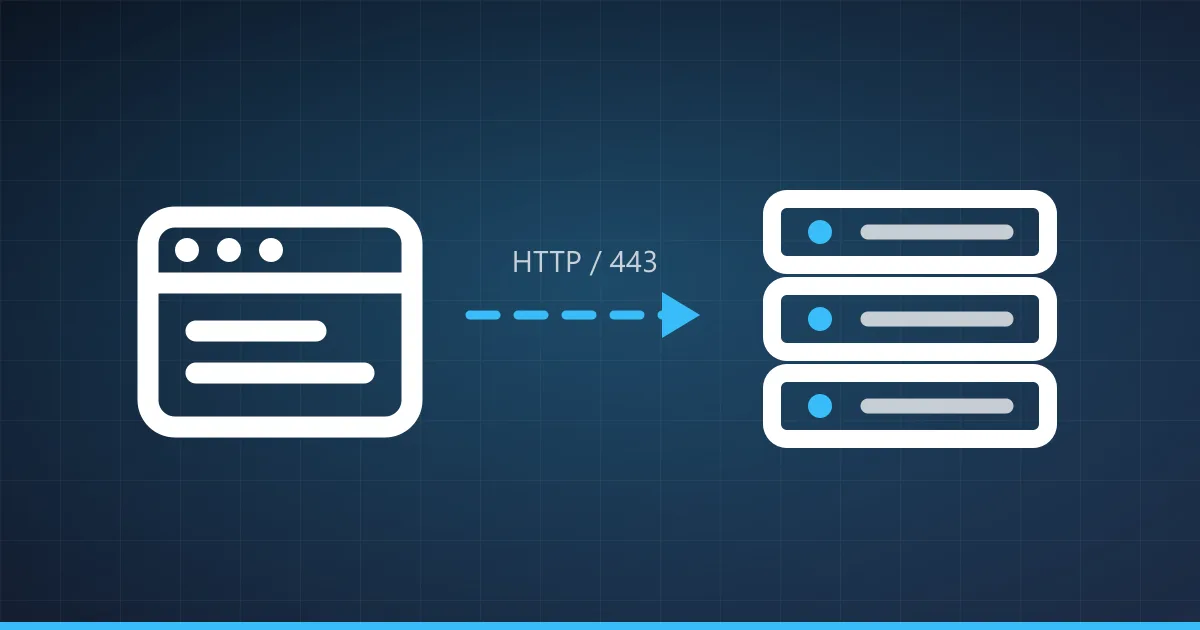
Hosting a Website on a VDS: Nginx and Apache Setup Guide
Host your own site on a VDS: install Nginx, configure PHP and MariaDB, issue a free Let's Encrypt SSL certificate and deploy WordPress.
Hosting a Website on a VDS
Running your site on a VDS (Virtual Dedicated Server) gives you far more control, performance and security than shared hosting ever will. This guide walks through setting up a web server, issuing an SSL certificate and deploying WordPress.
Why Host on a VDS?
| Feature | Shared Hosting | VDS Hosting |
|---|---|---|
| Performance | Limited and shared | High and guaranteed |
| Control | Restricted | Full root access |
| Security | Basic | Fully configurable |
| Scalability | Limited | Flexible |
| Custom software | Not possible | Install anything |
💡 The Xeon Enterprise VDS ENT-2 plan (2 Core, 4 GB RAM, 240 TRY per month) comfortably handles a site with moderate traffic.
Installing Nginx
Install
sudo apt update
sudo apt install nginx -y
# Start Nginx and enable it at boot
sudo systemctl start nginx
sudo systemctl enable nginx
# Check the status
sudo systemctl status nginxSite Configuration
# /etc/nginx/sites-available/yoursite.com
server {
listen 80;
server_name yoursite.com www.yoursite.com;
root /var/www/yoursite.com/html;
index index.html index.php;
location / {
try_files $uri $uri/ /index.php?$args;
}
location ~ \.php$ {
fastcgi_pass unix:/var/run/php/php8.3-fpm.sock;
fastcgi_param SCRIPT_FILENAME $document_root$fastcgi_script_name;
include fastcgi_params;
}
# Security headers
add_header X-Frame-Options "SAMEORIGIN" always;
add_header X-Content-Type-Options "nosniff" always;
add_header X-XSS-Protection "1; mode=block" always;
# Gzip compression
gzip on;
gzip_types text/plain text/css application/json application/javascript;
}# Enable the site
sudo ln -s /etc/nginx/sites-available/yoursite.com /etc/nginx/sites-enabled/
sudo nginx -t
sudo systemctl reload nginxSSL With Let’s Encrypt
# Install Certbot
sudo apt install certbot python3-certbot-nginx -y
# Issue the certificate
sudo certbot --nginx -d yoursite.com -d www.yoursite.com
# Test automatic renewal
sudo certbot renew --dry-runInstalling PHP
# PHP 8.3 and the common extensions
sudo apt install php8.3-fpm php8.3-mysql php8.3-curl php8.3-gd php8.3-mbstring php8.3-xml php8.3-zip -y
# Check the PHP-FPM status
sudo systemctl status php8.3-fpmMySQL and MariaDB
# Install MariaDB
sudo apt install mariadb-server -y
sudo mysql_secure_installation
# Create a database and a user
sudo mysql -u root -p
CREATE DATABASE site_db;
CREATE USER 'site_user'@'localhost' IDENTIFIED BY 'strong_password';
GRANT ALL PRIVILEGES ON site_db.* TO 'site_user'@'localhost';
FLUSH PRIVILEGES;Installing WordPress
# Download WordPress
cd /var/www/yoursite.com/html
wget https://wordpress.org/latest.tar.gz
tar -xvf latest.tar.gz
mv wordpress/* .
rm -rf wordpress latest.tar.gz
# Set the permissions
sudo chown -R www-data:www-data /var/www/yoursite.com/html
sudo chmod -R 755 /var/www/yoursite.com/htmlOpen https://yoursite.com in a browser and finish the WordPress installer.
Performance Tuning
Nginx FastCGI Cache
# FastCGI cache
fastcgi_cache_path /tmp/nginx-cache levels=1:2 keys_zone=WORDPRESS:100m inactive=60m;
location ~ \.php$ {
fastcgi_cache WORDPRESS;
fastcgi_cache_valid 200 60m;
fastcgi_cache_use_stale error timeout;
}PHP OpCache
# /etc/php/8.3/fpm/conf.d/opcache.ini
opcache.enable=1
opcache.memory_consumption=128
opcache.max_accelerated_files=10000
opcache.revalidate_freq=60Which Plan for Which Site
| Site type | Recommended plan | Specs |
|---|---|---|
| Blog or brochure site | ENT-1 | 2 Core, 2 GB RAM, 30 GB SSD |
| E-commerce | ENT-3 | 4 Core, 6 GB RAM, 60 GB SSD |
| High traffic | ENT-5 | 8 Core, 10 GB RAM, 100 GB SSD |
| Multiple sites | PRO-4 | 8 Core Ryzen, 10 GB RAM, 100 GB SSD |
Conclusion
Hosting your site on a VDS buys you full control and consistent performance for a price that compares well with premium shared plans. Everything above takes an afternoon at most.
👉 Start with affordable web hosting on Xeon Enterprise VDS, and consider a backup server to keep your site files on separate hardware.